

 Tweet
Tweet
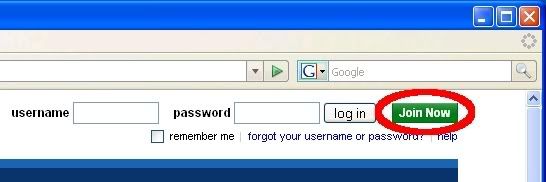
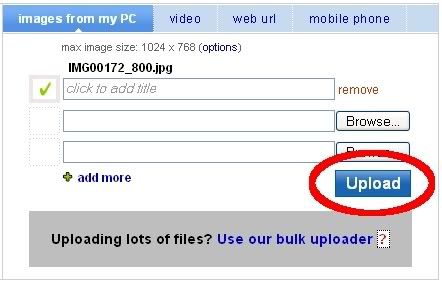
In order to post a picture on the forum you need to have it hosted online on a web server. There are several free ones out there, these are a few of the better ones.
Hunt101 [[Photobucket deleted, as terms of service have changed]] UpitAll Imgur
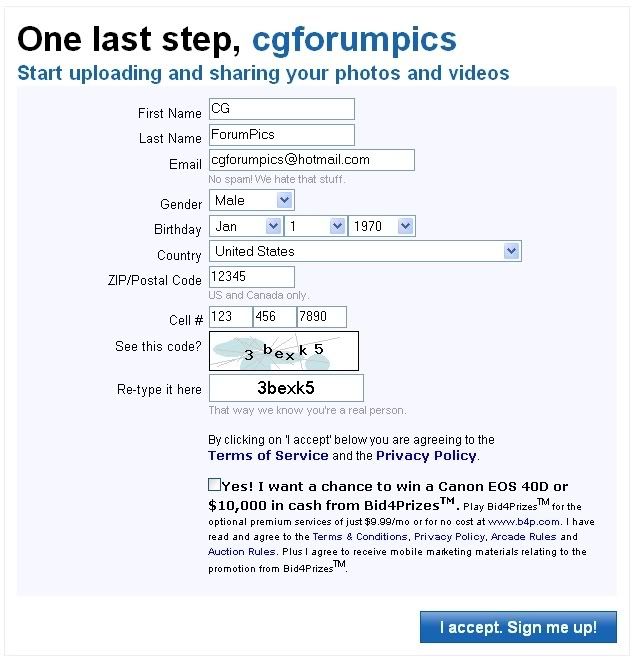
All of them are free and for the most part you register an account just like you do to join a forum. Most will also give you the necessary url and encoding to post your pictures in your post.
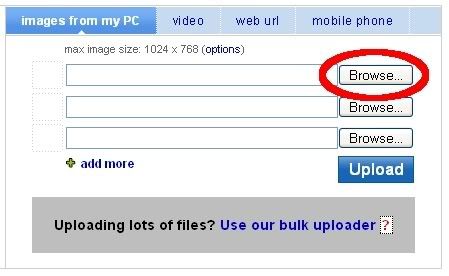
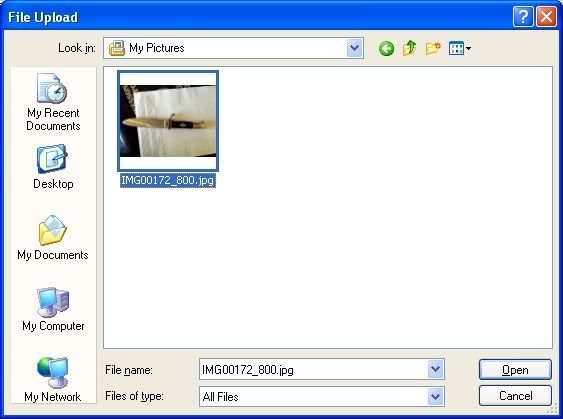
Once you have uploaded your pictures and copied the url for the picture you are ready to post it in your thread.
There are three ways to do this.
1) If your photo hosting site gives you a link to paste that has the proper tags you can just paste it in to your post. It should look something like this:
[img] www.image.com/url/1234.jpg [/img] but without the spaces.
2) If you have the url for the picture you can manually add the necessary tags yourself. simply type [img] before the url of the picture and [/img] after it. It should end up looking like this:
[img] www.image.com/url/1234.jpg [/img] Again make sure you do not have spaces between the tags and the url or in the url itself.
3) If you have the url you can click on the little image that looks like mountains and a sun, above the window where you type in your post or reply. This will open a pop-up that asks for the url of your picture. Paste in the url for your image and click ''OK'.
With any of these three methods your picture should show up in your post as an image.
========== Edit your thread title =========
Find the first post in your thread.
Click on the 'Edit' button.
Look at the lower right: click on the 'Go Advanced' button.
The display will have a separate text area for the title - edit that.
Click the 'save' button.
======== Embed Youtube Video =======
Above the text entry box is a row of icons. One of those at the right is "You Tube".
What that does is put in <youtube] [/youtube> tokens.
Put the number-and-letter part "http://www.youtube.com/watch?v=0_EFdod4YDo" , the part after the " = ", between the ] [ of the tokens.
So, <youtube]number-and-letters-after-the-equal-sign[/youtube>
(Of course, to be able to see it, the first "[" has been changed to "<", and the last "]" changed to ">".)
// Librarian 8/20/2012
On another topic ...
========== Deleting threads ==========
Members cannot do that. The software restricts that power to Moderators. Members CAN delete their own posts, except the first post in a thread, because deleting the first post deletes the thread.
// Librarian, 8/9/2019
Hunt101 [[Photobucket deleted, as terms of service have changed]] UpitAll Imgur
All of them are free and for the most part you register an account just like you do to join a forum. Most will also give you the necessary url and encoding to post your pictures in your post.
Once you have uploaded your pictures and copied the url for the picture you are ready to post it in your thread.
There are three ways to do this.
1) If your photo hosting site gives you a link to paste that has the proper tags you can just paste it in to your post. It should look something like this:
[img] www.image.com/url/1234.jpg [/img] but without the spaces.
2) If you have the url for the picture you can manually add the necessary tags yourself. simply type [img] before the url of the picture and [/img] after it. It should end up looking like this:
[img] www.image.com/url/1234.jpg [/img] Again make sure you do not have spaces between the tags and the url or in the url itself.
3) If you have the url you can click on the little image that looks like mountains and a sun,
above the window where you type in your post or reply. This will open a pop-up that asks for the url of your picture. Paste in the url for your image and click ''OK'. With any of these three methods your picture should show up in your post as an image.
========== Edit your thread title =========
Find the first post in your thread.
Click on the 'Edit' button.
Look at the lower right: click on the 'Go Advanced' button.
The display will have a separate text area for the title - edit that.
Click the 'save' button.
======== Embed Youtube Video =======
Above the text entry box is a row of icons. One of those at the right is "You Tube".
What that does is put in <youtube] [/youtube> tokens.
Put the number-and-letter part "http://www.youtube.com/watch?v=0_EFdod4YDo" , the part after the " = ", between the ] [ of the tokens.
So, <youtube]number-and-letters-after-the-equal-sign[/youtube>
(Of course, to be able to see it, the first "[" has been changed to "<", and the last "]" changed to ">".)
// Librarian 8/20/2012
On another topic ...
========== Deleting threads ==========
Members cannot do that. The software restricts that power to Moderators. Members CAN delete their own posts, except the first post in a thread, because deleting the first post deletes the thread.
// Librarian, 8/9/2019


 DUPE but I guess Ill let it slide since you own the board. LOL





Comment